Table of Contents
Managing a virtual data center can feel like a huge project, especially as systems get more complex. How do you keep track of all your virtual machines, dependencies, and application relationships without losing your mind? That’s where vRealize Infrastructure Navigator (VIN) steps in. This amazing tool by VMware makes it easier to see what’s going on inside your virtual environment. Instead of guessing which servers talk to each other or what apps depend on what, vRealize Infrastructure Navigator paints a clear picture. It shows how different parts of your system connect, helping you make better and faster decisions. In this beginner-friendly guide, we’ll explore everything you need to know about vRealize Infrastructure Navigator—what it is, why it’s useful, how it works, and how to start using it today to make life easier for IT teams.
What Is vRealize Infrastructure Navigator?
vRealize Infrastructure Navigator, also called VIN, is a plug-in tool for VMware vCenter. It helps IT admins discover relationships between virtual machines (VMs) and the software services running on them. VIN looks inside your vSphere environment and shows a detailed view of dependencies—like which VM runs a specific app, which database it connects to, and what other services rely on it. Instead of digging through systems manually, VIN automates the process and puts all this information in one easy-to-read dashboard. It’s like having a map that shows how your IT world connects.
Why Use vRealize Infrastructure Navigator?
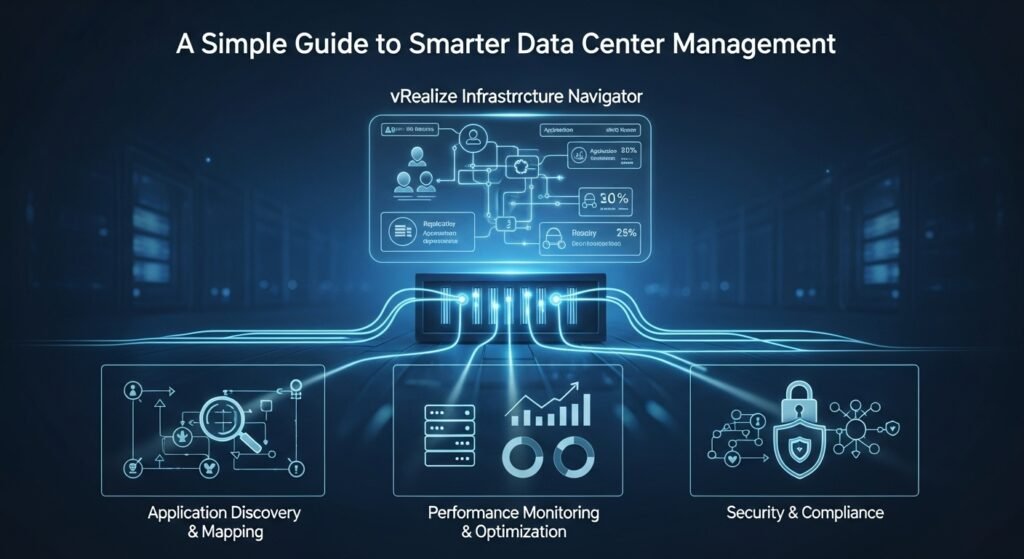
With so many VMs and services running at once, it’s easy to lose track. If one VM goes down, which applications are affected? Who do you call? vRealize Infrastructure Navigator answers these questions quickly. With visual graphs and clear data, it helps IT teams better plan updates, track changes, improve security, and respond to issues faster. For example, if you’re upgrading a VM, you can check whether it’s tied to a customer-facing app. That way, you avoid breaking something important. VIN is also great for audits, troubleshooting, and improving system health.
Key Features of vRealize Infrastructure Navigator
What makes vRealize Infrastructure Navigator such a valuable tool? First, it offers automatic discovery—no need to manually scan or label machines. Once installed, VIN scans your vSphere environment and builds a detailed picture of all your VMs and services. It also updates regularly in real time as systems change. You get color-coded topology maps showing application tiers, cluster-level visibility, and deep insights into OS-level services. VIN supports many popular platforms like Apache, Microsoft SQL, Oracle, and more. It also integrates seamlessly with VMware’s other tools, including vRealize Operations and vCenter Server.
How vRealize Infrastructure Navigator Works
vRealize Infrastructure Navigator installs as a virtual appliance, usually within minutes. Once running, it connects to your vCenter Server and scans your virtual infrastructure. It uses credentials you provide to log into VMs and discover apps and services. Then, VIN creates real-time dependency maps to show which resources are connected. It collects metadata about the OS, hardware, software, and network connections. This information is displayed using the vSphere Web Client. Everything updates dynamically, so you can see changes as they happen. The result? A super-clear view of what relies on what—without the confusion.
Benefits of Application Dependency Mapping
Application Dependency Mapping (ADM) is a huge benefit of vRealize Infrastructure Navigator. It lets you see the full stack of your apps—from web servers and databases to the VMs that host them. This helps with capacity planning, disaster recovery, patch management, and system upgrades. For example, before taking down a VM for maintenance, VIN shows you what services use it. That way, you avoid unwanted downtime and service disruption. ADM also improves security by helping teams spot unexpected external connections or risky dependencies that could affect compliance.
How VIN Enhances vSphere Environments
If you already use VMware vSphere, adding vRealize Infrastructure Navigator is a smart move. It gives your vSphere environment even more brainpower. With VIN, you go from simple VM tracking to full-service visibility. You can tag apps, group VMs into tiers, and manage entire services—not just individual machines. VIN adds powerful context for every VM and lets you find important relationships in seconds instead of hours. Together with vSphere High Availability and Distributed Resource Scheduler, VIN brings smarter resource use and better performance tuning.
Use Cases for vRealize Infrastructure Navigator
There are many ways to use vRealize Infrastructure Navigator. One common scenario is during data center migrations. VIN helps by showing exactly what apps and services are running, which makes lift-and-shift easier and safer. You can also use VIN for impact analysis before hardware upgrades, VM decommissions, or network changes. It’s useful during regular maintenance to avoid breaking app dependencies. Security teams use VIN to find unapproved apps or sketchy traffic patterns. Even help desks can use VIN during incidents to see how a failed VM might be affecting other parts of the system.
Integrating VIN With Other VMware Tools
vRealize Infrastructure Navigator becomes even more powerful when used with other VMware tools. It integrates with vRealize Operations, Log Insight, and vCenter Operations Manager. This means your dashboards and logs gain deeper knowledge of the apps and services running on your VMs. When an alert shows up, you don’t just see server stats—you understand exactly what service is affected. This kind of insight helps you fix problems faster. VIN also exports its maps and metadata, which means you can feed data into other tools like ServiceNow or CMDBs to boost automation.
Limitations of vRealize Infrastructure Navigator
While vRealize Infrastructure Navigator is helpful, it does have limits. First, it only works inside VMware vSphere environments—it won’t track dependencies on physical hardware or non-VMware platforms without extra tools. Also, VIN requires in-guest credentials to collect app data, which means you need admin permissions across your VMs. In some cases, this isn’t easy to arrange. It also doesn’t discover everything—you may miss custom-built apps or rare software not in its database. Still, for standard enterprise apps, VIN does a great job and provides huge value with little setup.
Security and Compliance with VIN
Keeping systems secure and in line with company rules is hard work. vRealize Infrastructure Navigator makes it easier. By showing what services are running and who connects where, VIN helps spot unusual patterns and unknown apps. You can check if apps are running on unauthorized VMs or if external IPs are connecting to systems that should be private. This helps meet compliance goals and audit requirements. If you plan a security patch or firewall change, VIN shows what could be affected—reducing the chance of unexpected outages.
Setting Up vRealize Infrastructure Navigator
Ready to try vRealize Infrastructure Navigator? Getting started is straightforward. Download the VIN virtual appliance from VMware. Deploy it on your vSphere server like another VM. Once deployed, log in to the admin page and add your vCenter credentials. Pick which clusters or datastores to scan. After that, VIN starts discovering automatically. You’ll see results in the vSphere Web Client under the VIN tab. From there, you can explore maps, details, and reports about your infrastructure and apps. It’s smart to test in a lab environment first, then expand across your organization.
Real-World Example: Saving Time and Reducing Downtime
Here’s a real-world benefit of vRealize Infrastructure Navigator. A large company was planning to shut down old VMs to save costs. Before removing anything, they used VIN to scan their systems. VIN showed that a tiny VM they thought was inactive was actually hosting a key file-sharing app used by remote teams. Without VIN, shutting that VM would have broken important workflows. Thanks to VIN, they saved time, avoided downtime, and kept their users happy. Real-time awareness makes a big difference when running complex digital environments.
FAQs
1. What is vRealize Infrastructure Navigator used for?
It helps discover and map app dependencies inside virtual environments so teams can manage resources smarter.
2. Does VIN work with physical servers?
No, vRealize Infrastructure Navigator is built for VMware vSphere environments and doesn’t map physical servers.
3. Is VIN included with vSphere?
No, VIN is a separate plugin and may require an extra license depending on your VMware subscription.
4. Can VIN find every software app?
It detects many popular services, but may miss custom, obscure, or rare applications not in its standard database.
5. Do I need admin access to use VIN?
Yes, VIN requires in-guest admin credentials for full application discovery. Otherwise, it may only detect OS-level info.
6. Is VIN still supported by VMware?
VMware discontinued VIN as a standalone in later product versions, but similar features are now part of vRealize Operations and other tools.
Final Thoughts
If your virtual setup feels complex and hard to manage, vRealize Infrastructure Navigator can be a game-changer. It brings clarity, control, and confidence to busy IT teams. By showing connections, dependencies, and service layers, VIN helps you work smarter—not harder. While it may not find every app or work outside vSphere, it fits perfectly into the world of VMware tools. Whether you’re working on upgrades, planning changes, or just want to reduce downtime, VIN adds a layer of visibility you’ll wonder how you ever lived without. If you’re ready to take the guesswork out of infrastructure management, VIN is a great place to start.